This is part 2 of a five-part guide to running Jellyfin on your own server and connecting it to a Telegram bot. Part 1 got Jellyfin installed and reachable over plain HTTP on port 8096. This part gets it a real address and a padlock. Parts 3, 4 and 5 are the Telegram half.
http://52.x.x.x:8096 works, but it has three problems. It's plain HTTP, so your
Jellyfin password goes over the network in the clear. It's a numeric address you
have to remember or bookmark. And it advertises the port you're running a media
server on to anything that happens to scan it. A domain name and a reverse proxy
fix all three at once, and the whole thing is about fifteen minutes of work.
Pointing a domain at the instance
You need a domain, or a subdomain of one you already own - jellyfin.yourdomain.com
is exactly as good as a domain bought specifically for this. In your DNS
provider's dashboard, add:
Type: A
Name: jellyfin
Value: <your Lightsail static IP>
TTL:  default is fine
DNS propagation is usually minutes, occasionally longer. Check it landed before moving on:
$ dig +short jellyfin.yourdomain.com
52.x.x.x
If that doesn't return your IP yet, everything past this point will fail in confusing ways that have nothing to do with the server - go make tea and check again in ten minutes.
Installing Caddy
Caddy is a web server whose entire pitch, for this use case, is that HTTPS is the default behavior rather than something you set up. Point it at a domain and it gets a certificate from Let's Encrypt, renews it automatically, and never bothers you about it again.
sudo apt install -y debian-keyring debian-archive-keyring apt-transport-https curl
curl -1sLf 'https://dl.cloudsmith.io/public/caddy/stable/gpg.key' | sudo gpg --dearmor -o /usr/share/keyrings/caddy-stable-archive-keyring.gpg
curl -1sLf 'https://dl.cloudsmith.io/public/caddy/stable/debian.deb.txt' | sudo tee /etc/apt/sources.list.d/caddy-stable.list
sudo apt update
sudo apt install caddy
That's the official repo, from Caddy's own install docs. Installing the package also enables and starts the service, serving a default placeholder page on port 80 immediately.
Pointing Caddy at Jellyfin
The entire config lives in /etc/caddy/Caddyfile. Replace its contents:
jellyfin.yourdomain.com {
    reverse_proxy localhost:8096
}
Reload it:
sudo systemctl reload caddyVisit https://jellyfin.yourdomain.com. Caddy requests a certificate the first
time it sees a request for that hostname, which takes a few seconds, and after
that you have a padlock and Jellyfin behind it, on the standard HTTPS port - no
:8096 in the URL, no certificate you had to generate by hand.
Telling Jellyfin about the proxy
Jellyfin needs to know it's being reverse-proxied, mainly so it builds correct URLs and trusts the connection as local even though it's arriving via Caddy. In the admin dashboard: Dashboard → Networking.
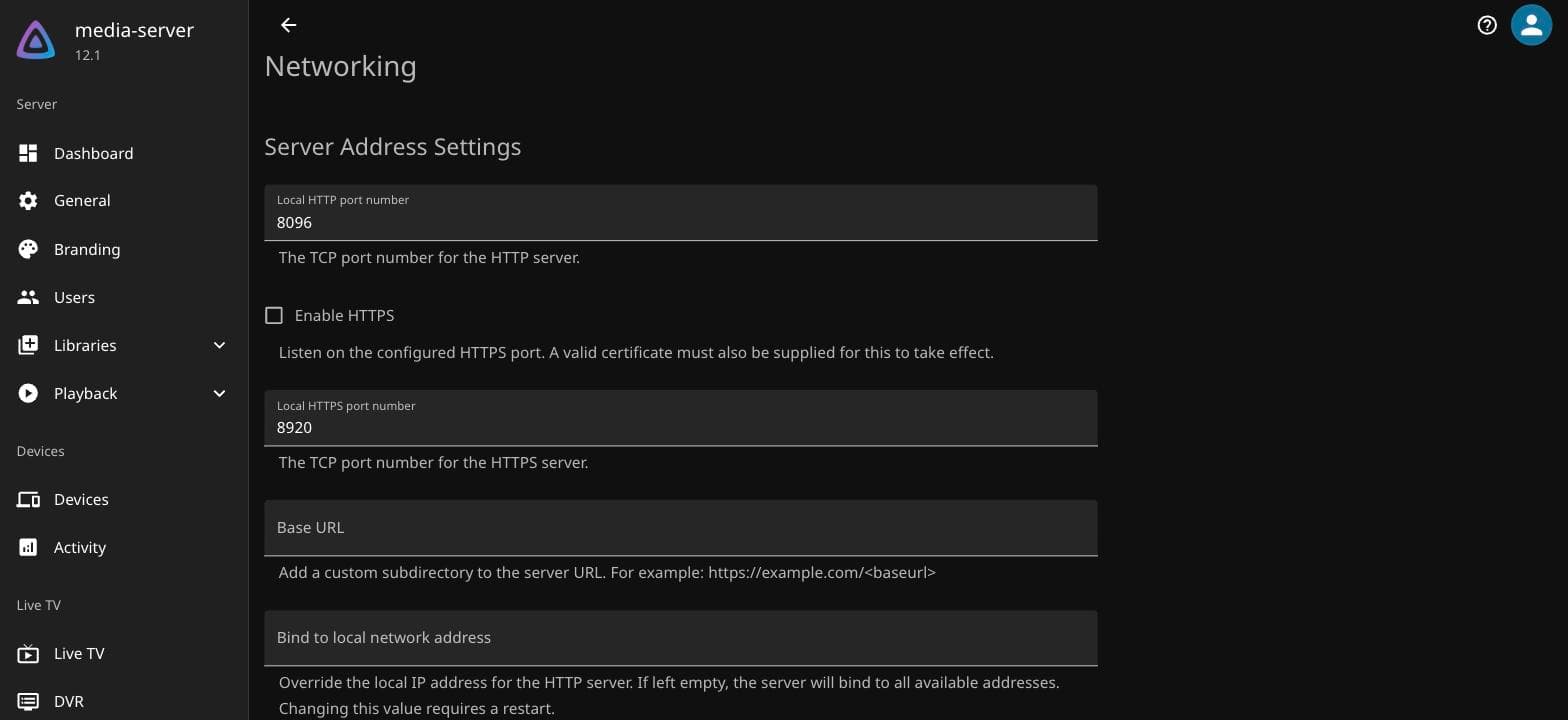
- Known proxies - add
127.0.0.1. - Base URL - leave blank unless you're serving Jellyfin from a subpath, which this setup doesn't need.
Restart Jellyfin for the networking change to apply:
sudo systemctl restart jellyfinClosing the port you don't need exposed anymore
Once the domain works over HTTPS, port 8096 open to the whole internet is pure downside - it's plain HTTP, and there's now a better path to the same server. Remove the rule from Lightsail's Networking tab, keeping only 22 (SSH), 80, and 443.
Traffic still reaches Jellyfin: browser → 443 → Caddy → localhost:8096 →
Jellyfin, all on the box itself, where localhost:8096 was never exposed to the
internet in the first place.
browser ──HTTPS──► Caddy (443) ──plain HTTP, same box──► Jellyfin (8096)What people get wrong
- Trying HTTPS before DNS has actually propagated. Caddy will retry, but a
string of failed certificate requests against Let's Encrypt's rate limits can
lock you out of getting a cert for that domain for an hour. Confirm
digfirst. - Leaving 8096 open "just in case." It's not doing anything for you anymore and it's one more thing scanning the internet will find.
- Forgetting to restart Jellyfin after the Networking dashboard change. It
reads
Known proxiesat startup; saving the setting alone isn't enough. - Using a domain you don't control DNS for. Obvious in hindsight, but it's an easy thing to attempt with a domain from an employer or a shared family account where you don't actually have access to add records.
Next in the series
The server side is done. Part 3 switches to Telegram: creating a bot, and why the plain Telegram Bot API caps you at 20 MB downloads - which is most of a single episode - and what running your own copy of Telegram's API server buys you instead.