This is part 1 of a five-part guide to running Jellyfin on your own server and connecting it to a Telegram bot. Later parts cover getting a real domain and HTTPS, setting up the Telegram side, the script that ties them together, and keeping all of it running after a reboot.
I keep my movie collection - my own recordings, my own rips of discs I own, a few things shot on my phone that are too big for anyone's cloud photo tier - on a tiny Ubuntu box that costs ten dollars a month and runs Jellyfin. This series is what I did to get there, written the way I wish someone had written it for me: one server, one bot token, one working setup by the end of part 4, and a way to keep it alive by the end of part 5.
What Jellyfin actually is
Jellyfin is a free, open-source media server. You point it at a folder of video files, it reads their names and matches them against a metadata provider to get posters, descriptions and episode numbers, and it serves the result as a proper app - on your phone, your TV, a browser, whatever - instead of a folder of files you have to guess the names of.
The part that matters for this series: Jellyfin has an HTTP API. Every button in its web interface is a request to that API, including "rescan this folder for new files," which is the one this whole series is really about. A Telegram bot that can call one URL is enough to make your media server notice a file the moment it arrives.
Setting up the Lightsail instance
Amazon Lightsail is AWS with the complexity sanded off: fixed monthly pricing, a plain "create instance" button, no VPC configuration to get right before anything works.
- In the Lightsail console, Create instance.
- Platform: Linux/Unix. Blueprint: OS Only → Ubuntu 24.04 LTS.
- Instance plan: the $10/month tier (2 GB RAM, 2 vCPUs, 60 GB SSD) is the realistic minimum. Jellyfin itself is light. What eats memory and CPU is transcoding - converting a file on the fly because the device asking for it can't play the format directly. More on that in a moment.
- Name it something you'll recognize later, and create it.
Once it's running, go to the Networking tab and attach a static IP. Free while attached to a running instance, and it means the address you configure everywhere else - DNS, the bot script, your own bookmarks - doesn't change the next time the instance restarts.
Opening the firewall
Lightsail has two firewalls, and missing this is the single most common reason "I installed it and can't reach it" happens.
The first is the box's own, ufw, which we'll leave alone for now. The second is
Lightsail's own firewall, sitting in front of the instance entirely, on the same
Networking tab as the static IP. By default it allows SSH (port 22) and
nothing else. Add a rule for Custom → TCP → 8096, which is Jellyfin's default
port. Firewalls at this layer block a port silently - no connection refused, just
nothing, which is a uniquely confusing way for a beginner's first request to fail.
Installing Jellyfin
SSH into the instance - Lightsail gives you a browser-based terminal if you don't want to set up a key locally - and run the official install script:
curl https://repo.jellyfin.org/install-debuntu.sh | sudo bashThis adds Jellyfin's own apt repository and signing key, then installs three
packages: jellyfin-server, jellyfin-web, and jellyfin-ffmpeg, which is a
build of ffmpeg pinned to a version Jellyfin has actually tested transcoding
against, rather than whatever your distro happens to ship.
Check it came up:
$ systemctl status jellyfin
● jellyfin.service - Jellyfin Media Server
     Active: active (running)
It's listening on port 8096 already, on all interfaces, no extra config needed.
Open http://<your-static-ip>:8096 in a browser.
The first-run wizard
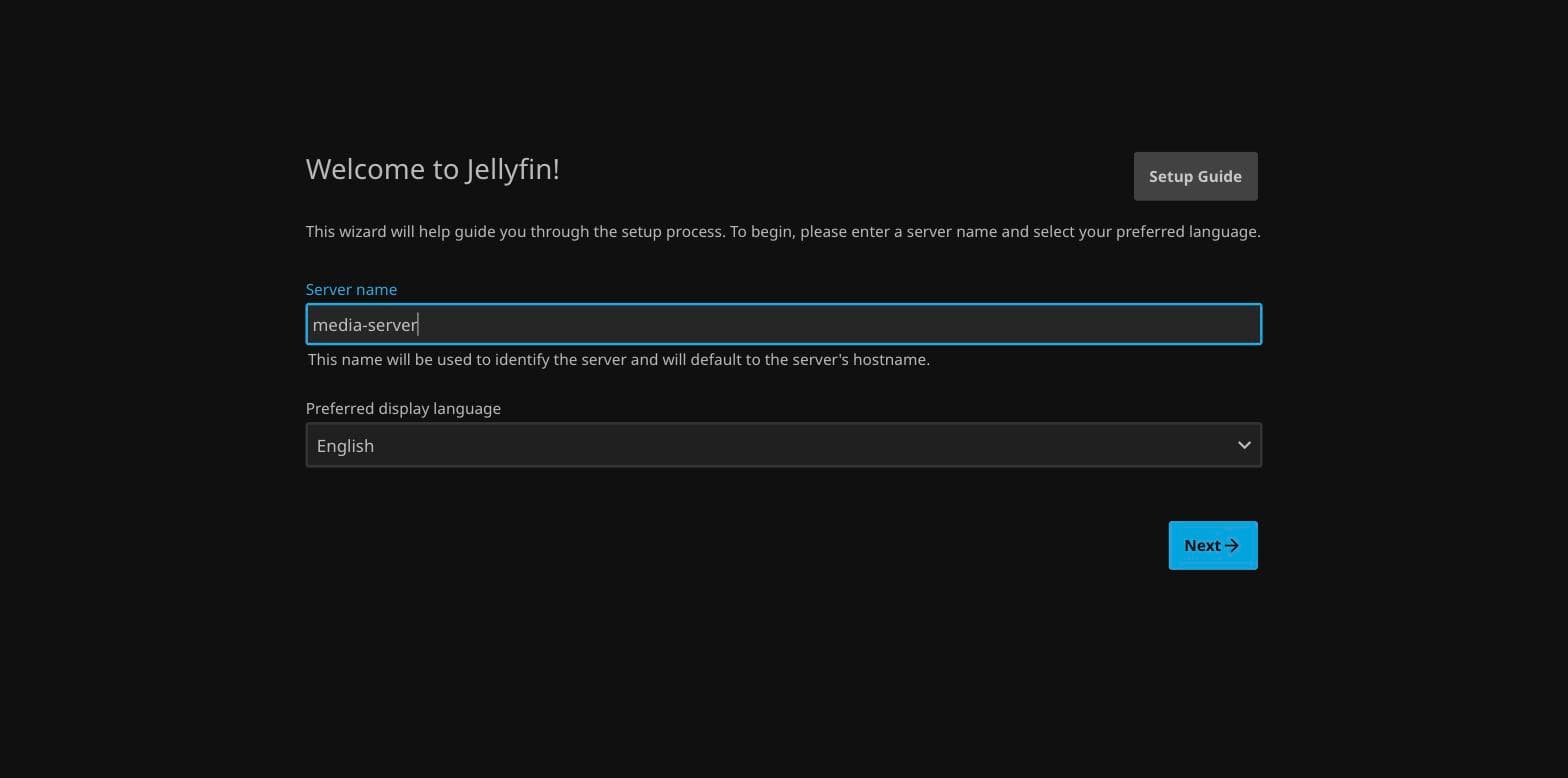
Five short screens, in order.
-
Language. Cosmetic, changes only.
-
Create the admin user. This is your Jellyfin login, unrelated to your Ubuntu login on the box itself. Use a real password - it's about to be reachable from the internet.
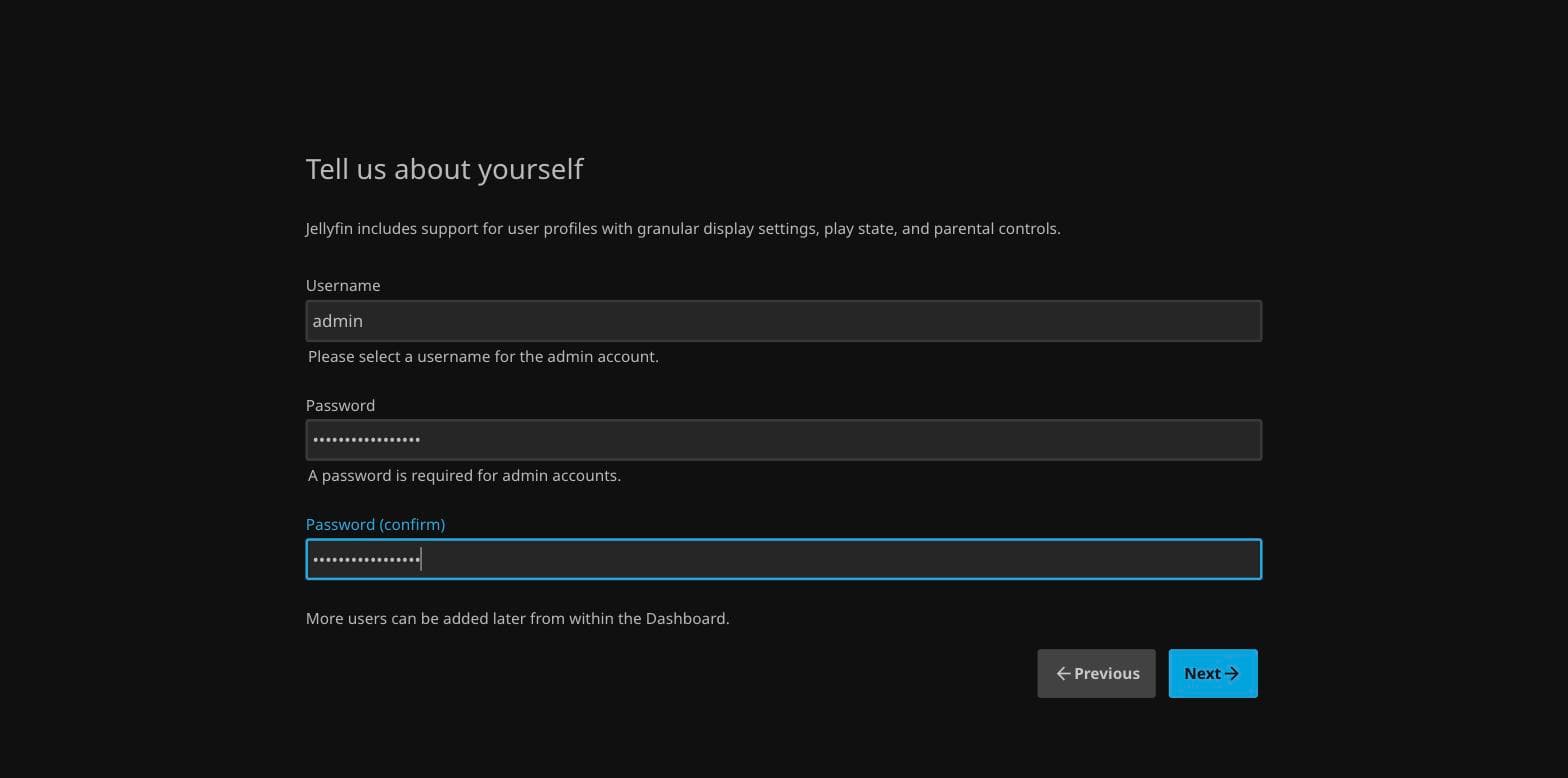
This account logs into the web UI and the dashboard. It has nothing to do with the ubuntu Linux user the bot script runs as in part 4. -
Add a media library. Choose a content type (Movies, Shows, Home Videos - whichever fits), give it a display name, and point it at a folder. I use
/home/ubuntu/files/ott, because it's also the folder the bot in part 4 saves into - decide yours now and it saves a rename later.sudo mkdir -p /home/ubuntu/files/ott sudo chown ubuntu:ubuntu /home/ubuntu/files/ott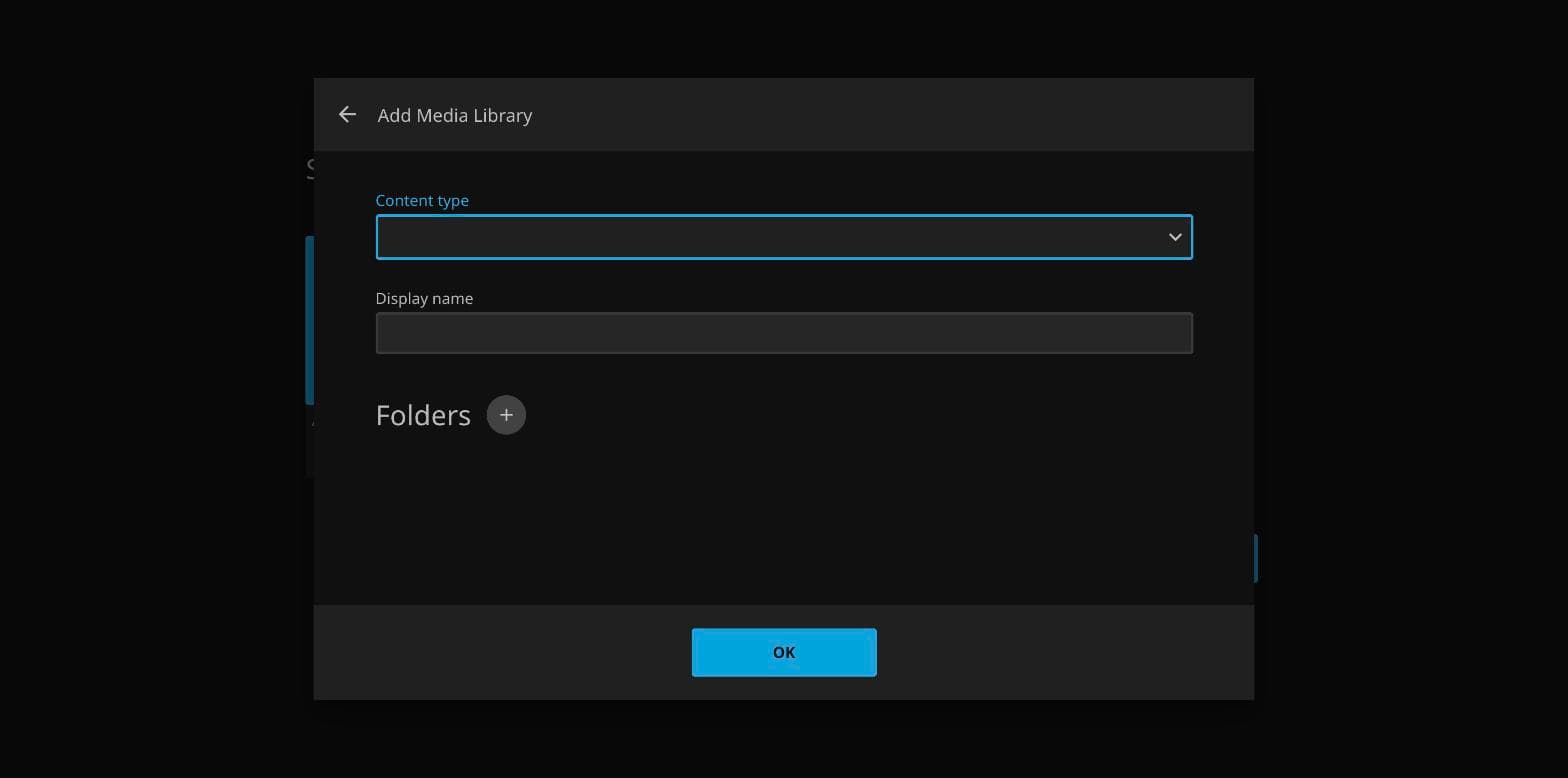
Content type changes which metadata provider Jellyfin queries - Movies asks a different database than Home Videos does. -
Metadata language and country. Affects which posters and descriptions it fetches. Leave the defaults unless you know you want otherwise.
-
Remote access. Leave "allow remote connections" on - that's the entire point of running this on a server instead of a laptop.
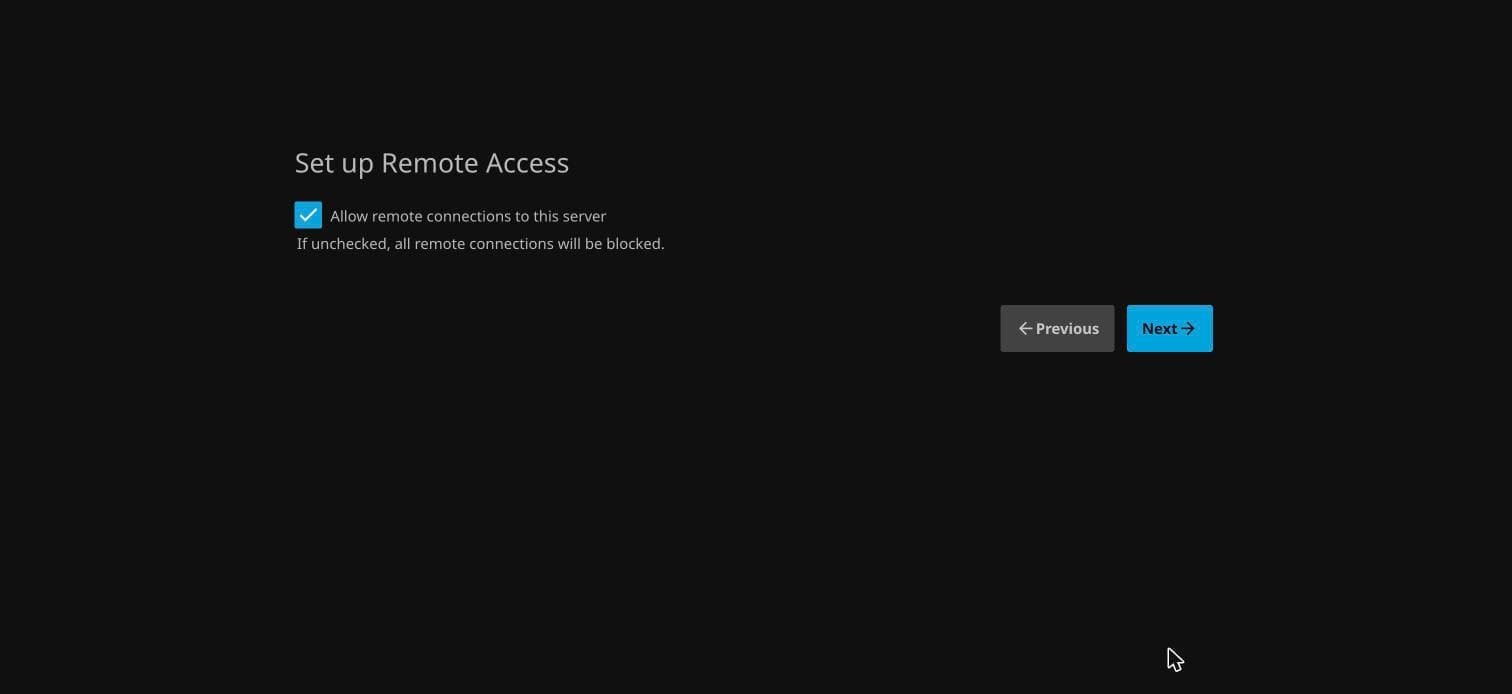
Leave this checked. It only controls whether Jellyfin itself will answer non-local requests - the actual gatekeeping is the firewall rule from earlier.
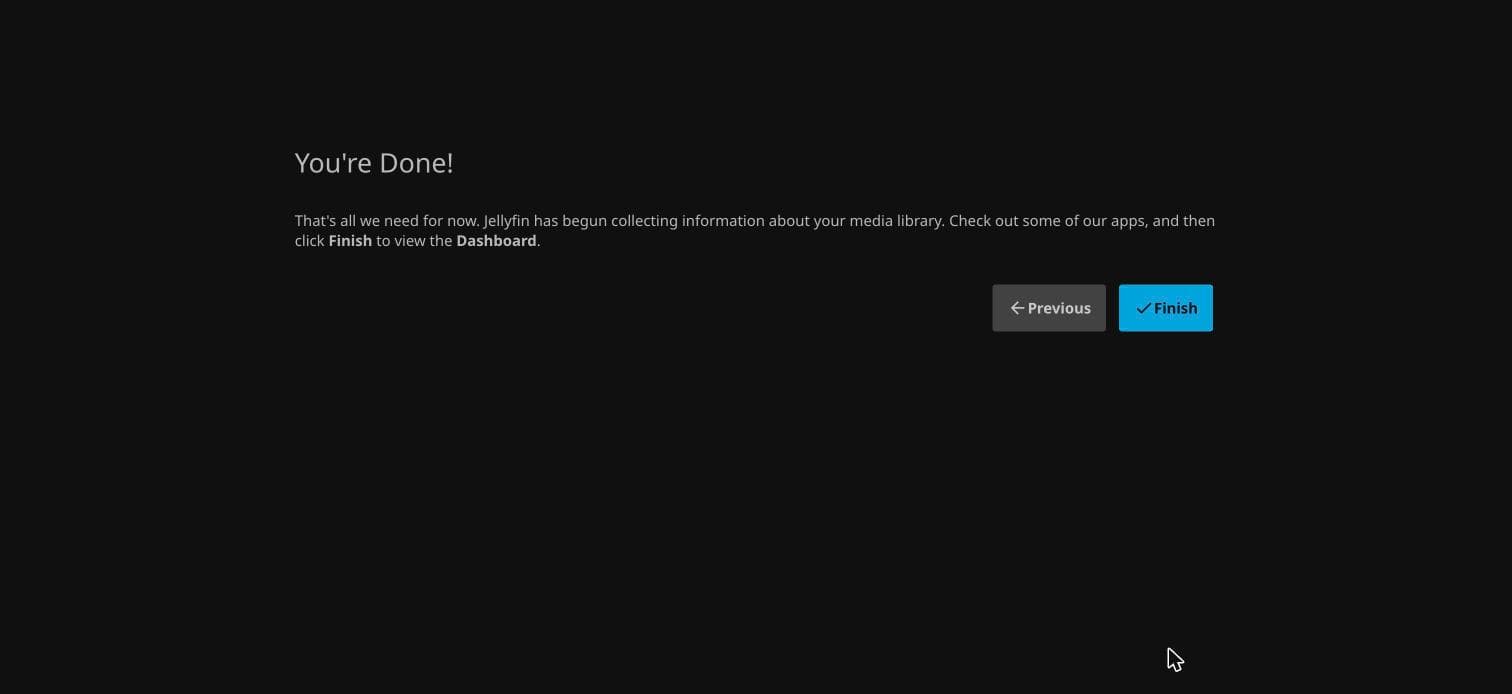
Finish the wizard and you're looking at an empty library, because the folder is
empty. Drop one file into /home/ubuntu/files/ott over scp and refresh the
library from the dashboard (Dashboard → Libraries → ⋮ → Scan Library) to
confirm the whole pipeline - folder, scan, metadata, playback - actually works
before you build anything on top of it.
scp your-file.mp4 ubuntu@<your-static-ip>:/home/ubuntu/files/ott/If it shows up with a poster within a minute or two of a manual scan, the server half of this series is done.
What people get wrong on day one
- Forgetting the Lightsail firewall.
ufwlooks fine, Jellyfin's logs look fine, and the browser still can't connect, because the block is happening one layer further out, on the Networking tab, before the packet ever reaches the instance. - Not attaching a static IP first. Configure everything against the instance's default public IP and it changes on the next stop/start, which quietly breaks the bot script from part 4 until you notice the address moved.
- Expecting 4K transcoding to work on the cheapest tier. It's a real limitation of CPU-only, budget hardware, not a Jellyfin bug. Keep files in a format your playback devices already support and this mostly doesn't come up.
- Pointing the library at the wrong folder. Jellyfin scans recursively but
needs read access - if you
chownthe folder toubuntuand later write into it asroot(a Telegram bot running undersudo, say), file permissions can quietly stop Jellyfin from seeing new files. Part 4 covers exactly this.
Next in the series
Part 2 replaces the IP address and plain HTTP with a real domain name and automatic HTTPS, using a two-line config file and a reverse proxy called Caddy.